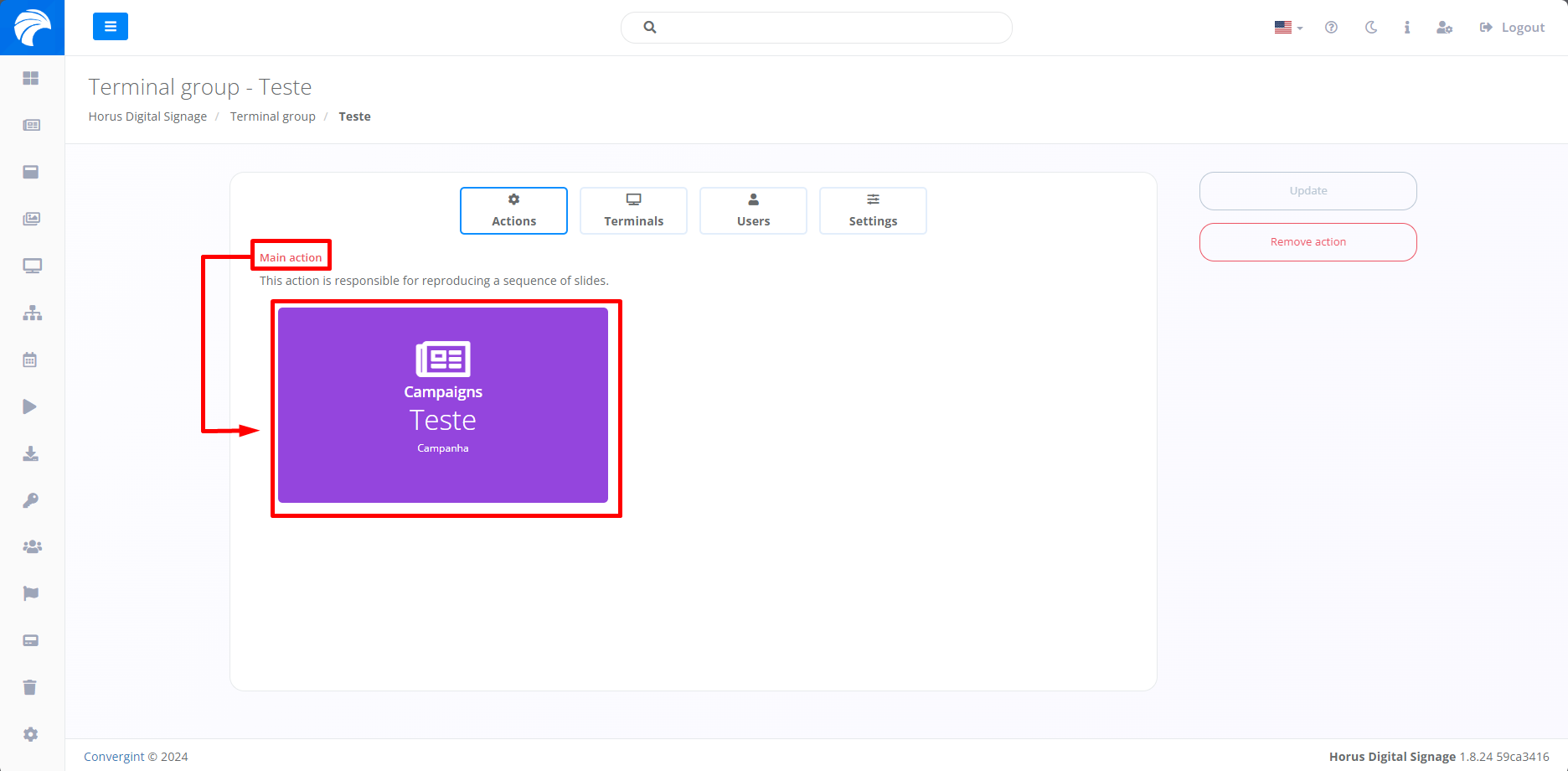
Adding an Action to the Terminal Group
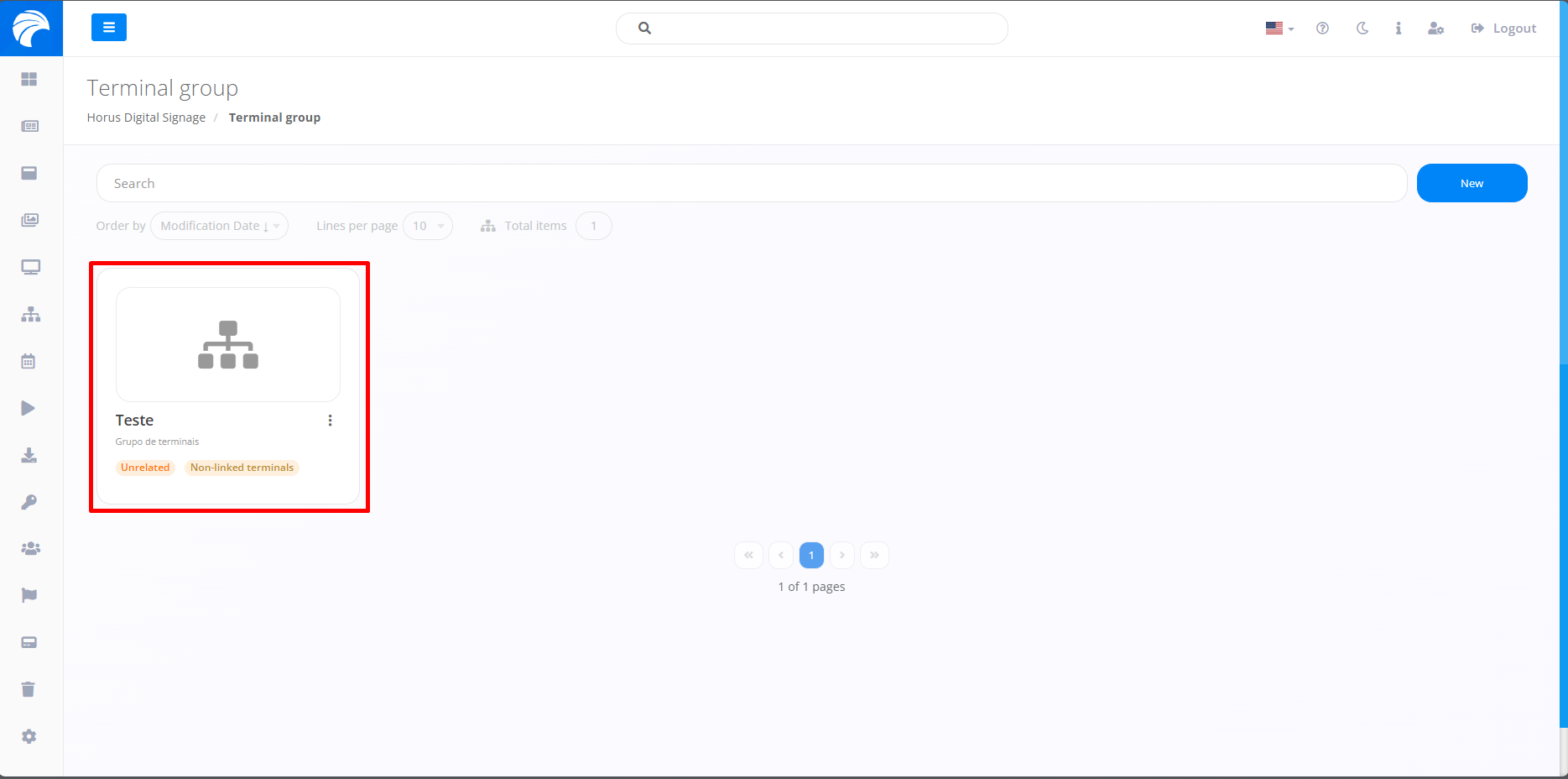
By following the steps described previously, the Group of Terminals will be registered. To add an Action (Campaigns or Scheduler), you need to access a previously created Terminal Group in which you want to include the type of action, according to your preference.
After creating or accessing a Terminal Group, the system will display the Terminal Interface, in which you can add an action type by clicking on the appropriate Action Type you want. Remembering that the same procedure is used for all types of actions.
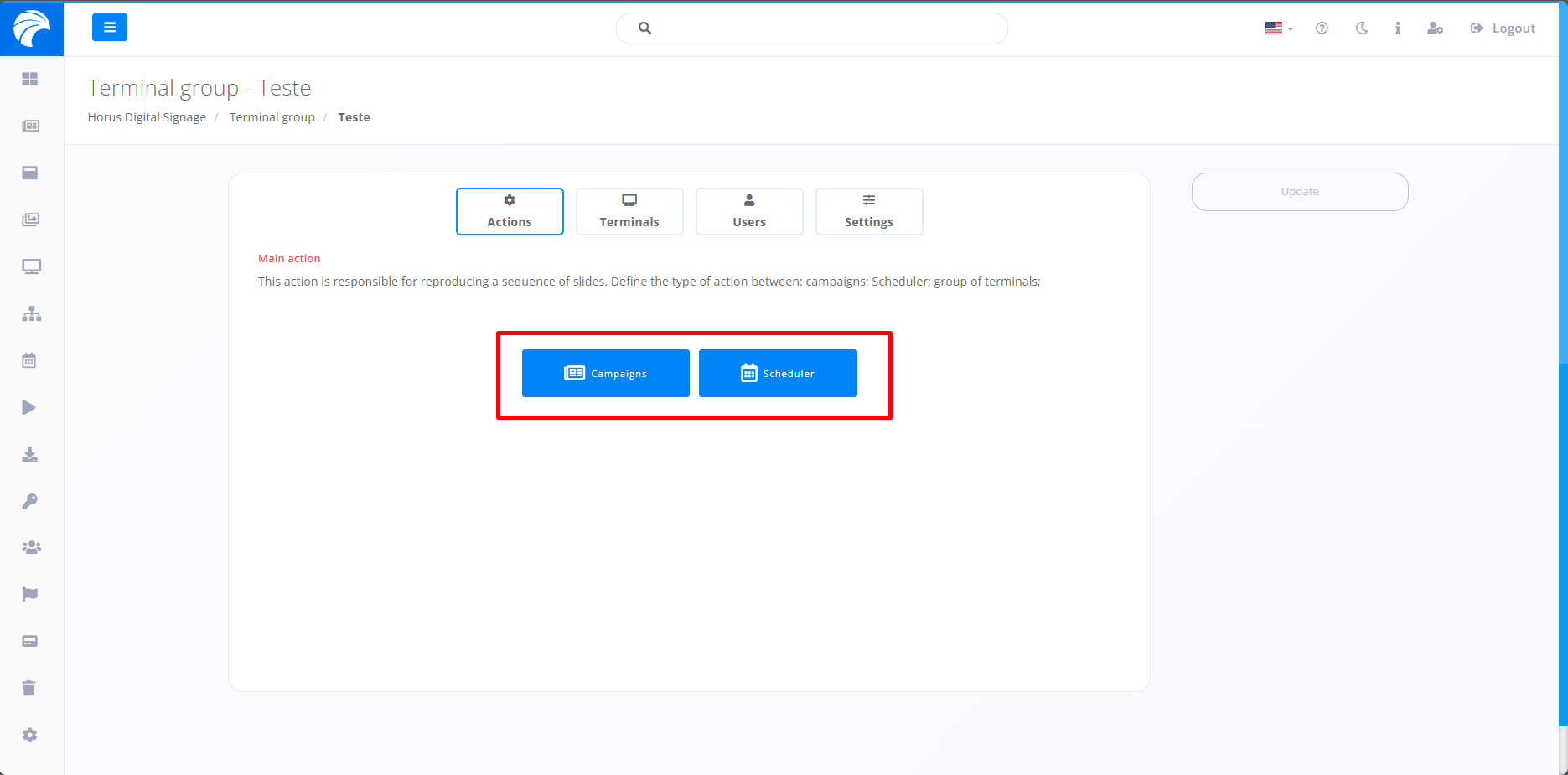
Note: I will use the addition of Campaigns as an example.
Immediately after clicking on an Action Type of your choice, the Campaign selection screen will be displayed on the screen, where you will need to click on the “+” button associated with the desired Campaign. This Campaign must contain the necessary Slide to be inserted in the appropriate Group of Terminals, according to your preference.
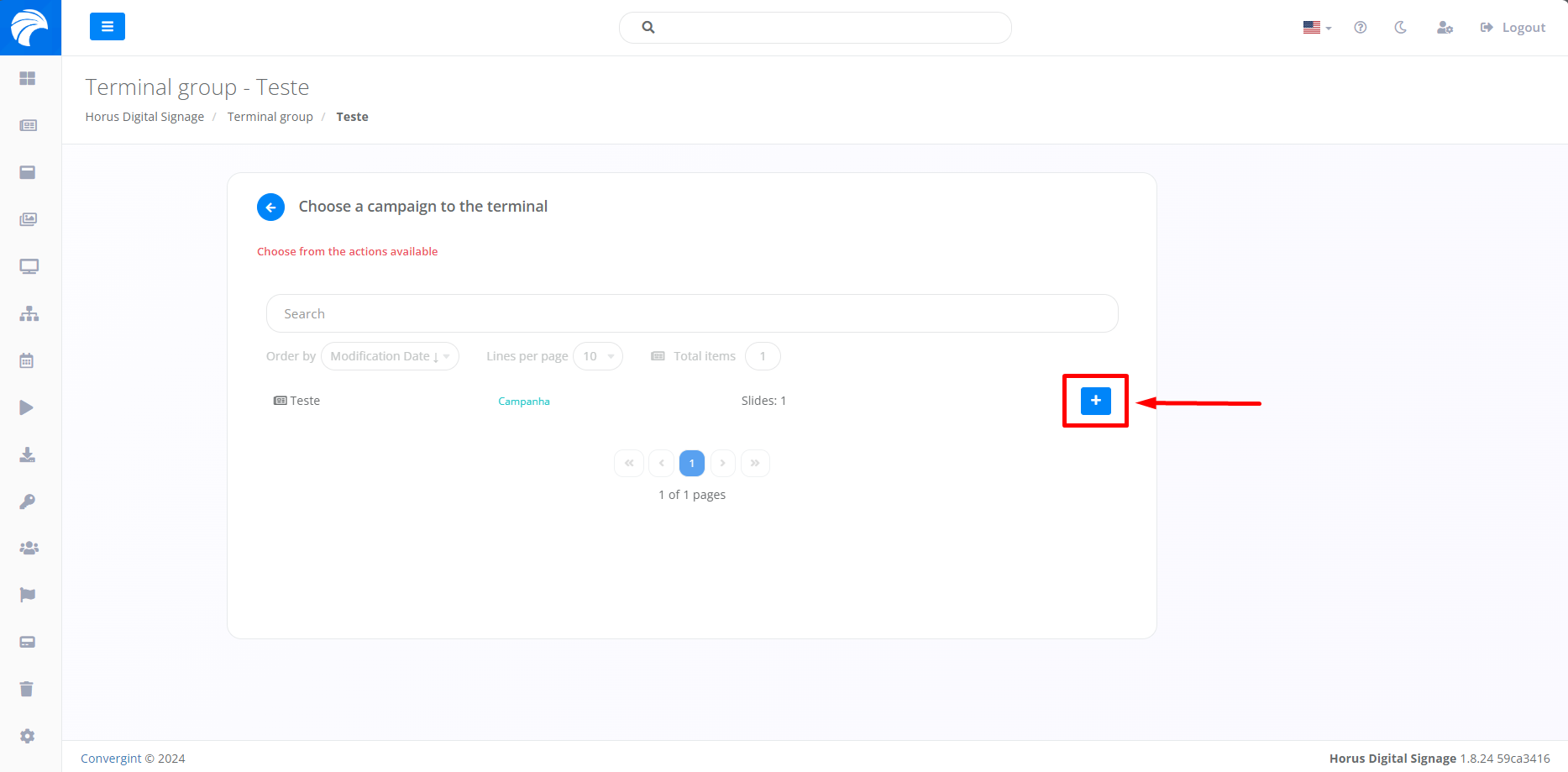
When selecting the Campaign, a pop up will appear asking for confirmation before proceeding with each function.
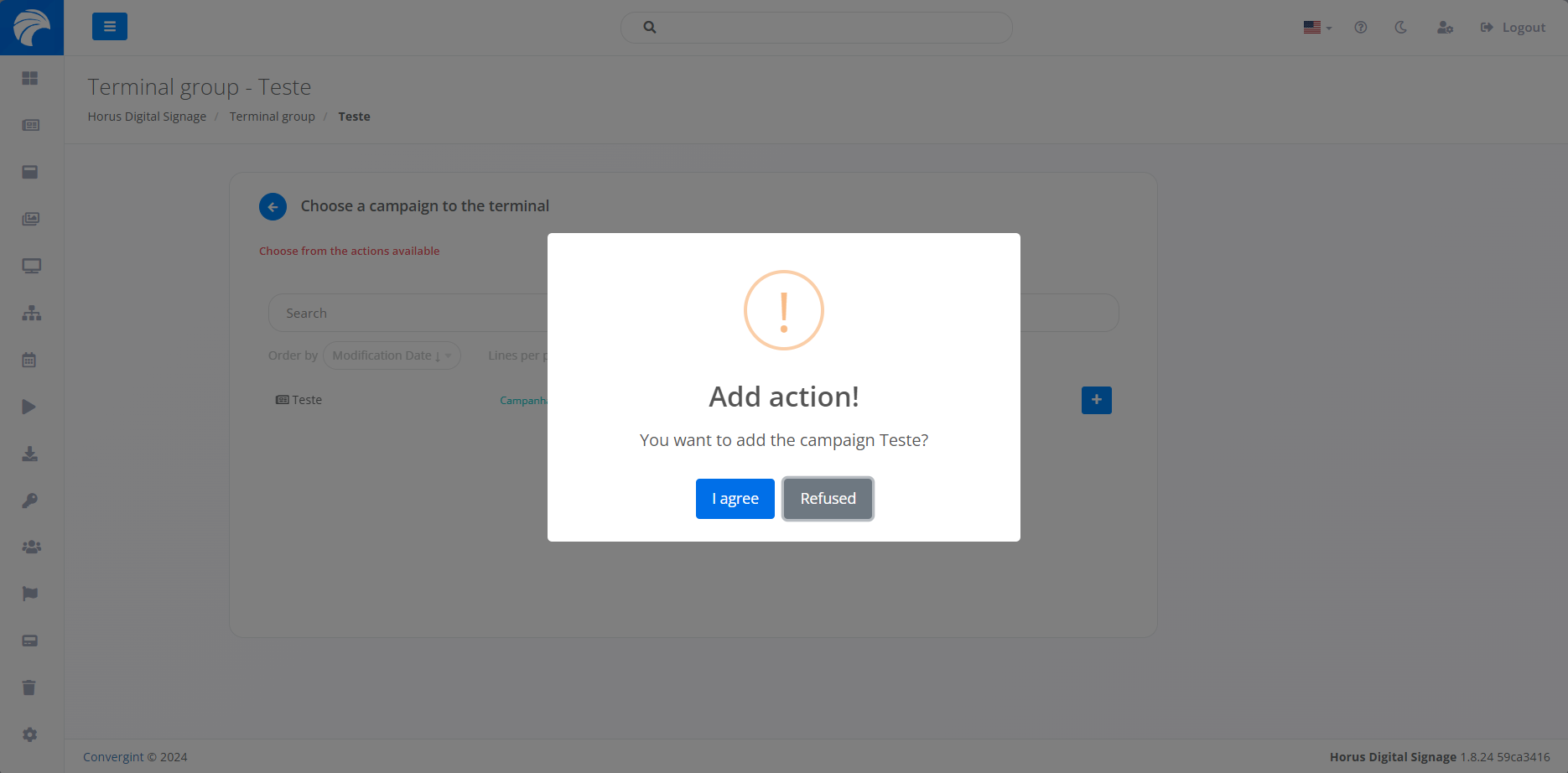
After selecting the desired Campaign, it will be added to the Group of Terminals, making it easier to interact with other functions.